MARGN
EN
Log in Start free →
MARGN/Academy/Market analytics/Keyword profile: entry difficulty and competition

Keyword profile: entry difficulty and competition

How realistic it is to rank for a query — score, dominant stores and similar keywords.

Market10 steps7 min
Open in MARGN
1

Clicking a keyword opens its profile: cards in results and in ads, stores, top-100 revenue and opportunity.
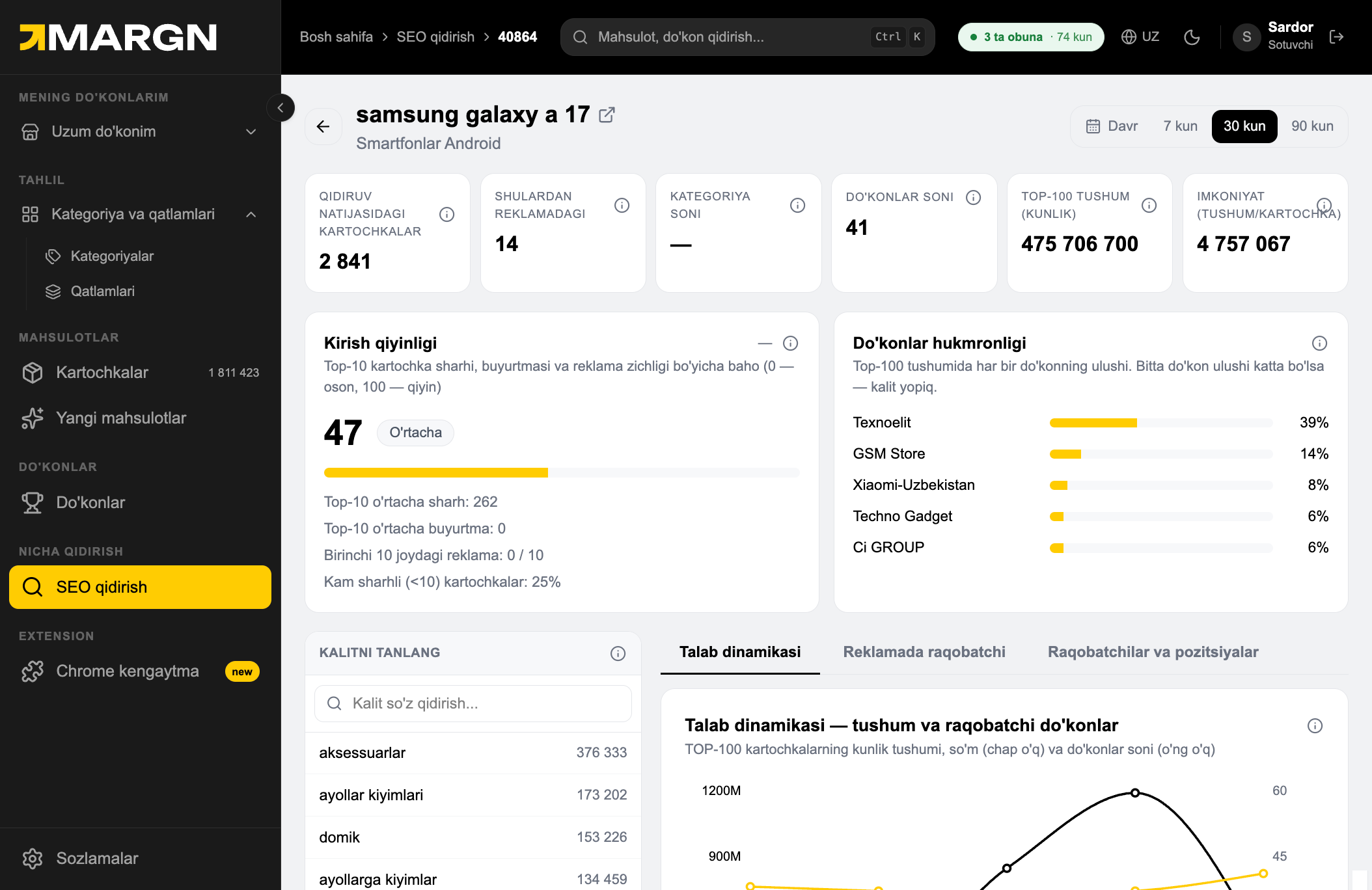
Step 1. Clicking a keyword opens its profile: cards in results and in ads, stores, top-100 revenue and opportunity. 1
2

Kirish qiyinligi runs 0–100, based on reviews, orders and ad density in the top 10.

Tip. Below 50, even a brand-new card can realistically reach the top.

Step 2. Kirish qiyinligi runs 0–100, based on reviews, orders and ad density in the top 10. 2
3

Do'konlar hukmronligi shows each store's share of top-100 revenue. One dominant store means the keyword is locked.

Step 3. Do'konlar hukmronligi shows each store's share of top-100 revenue. One dominant store means the keyword is locked. 3
4

Pick a keyword — use the list on the left to jump to another query or search for one.
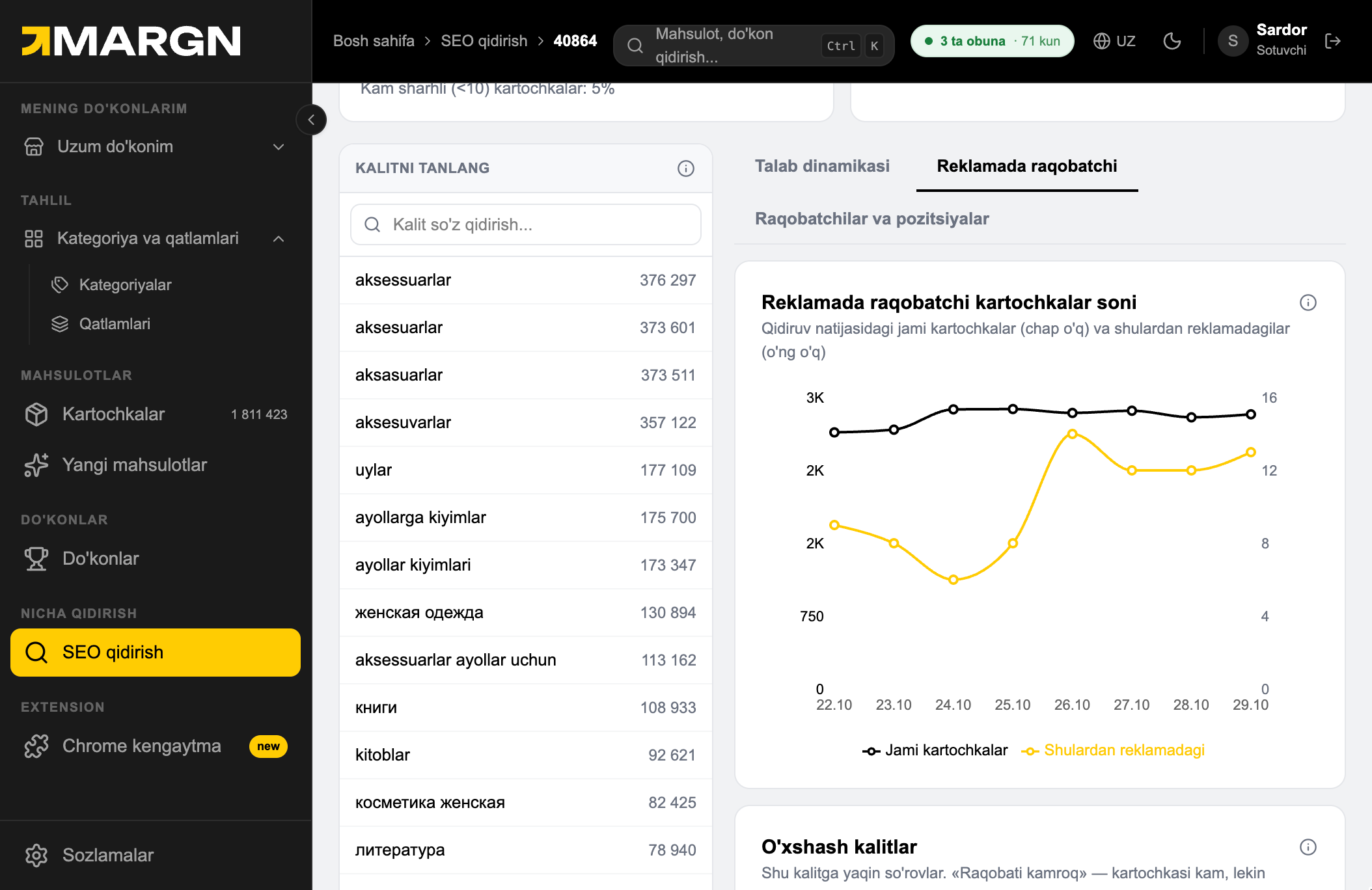
Step 4. Pick a keyword — use the list on the left to jump to another query or search for one. 4
5

Talab dinamikasi tracks daily revenue and the number of competing stores.
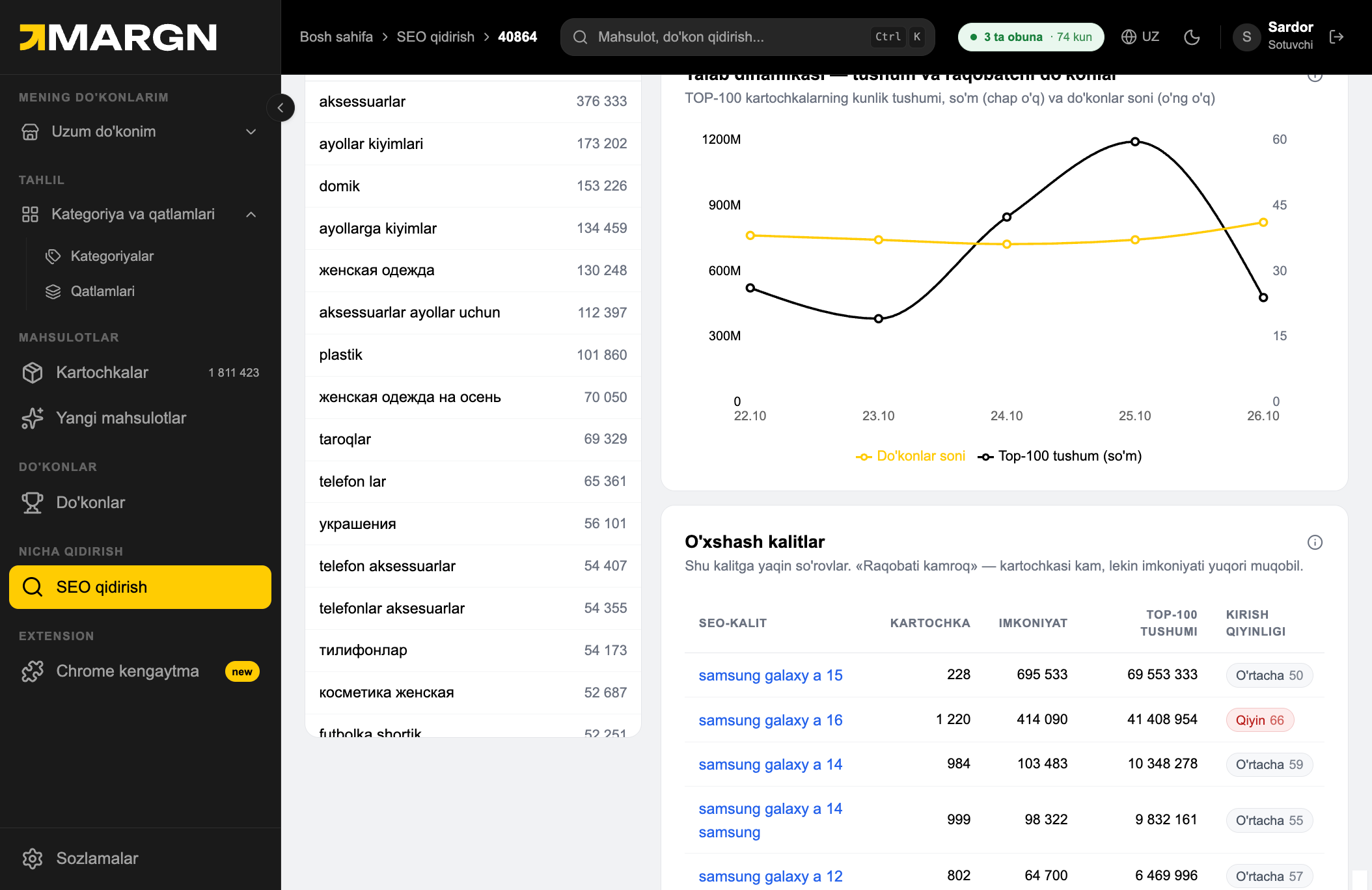
Step 5. Talab dinamikasi tracks daily revenue and the number of competing stores. 5
6

O'xshash kalitlar lists related queries — pick ones with few cards, high opportunity and low difficulty.

Step 6. O'xshash kalitlar lists related queries — pick ones with few cards, high opportunity and low difficulty. 6
7

Ad competitors — total products in results and how many of them are advertised, by day.

Step 7. Ad competitors — total products in results and how many of them are advertised, by day. 7
8

Competitors & positions — products shown for this query in the last 7 days, with category and store.
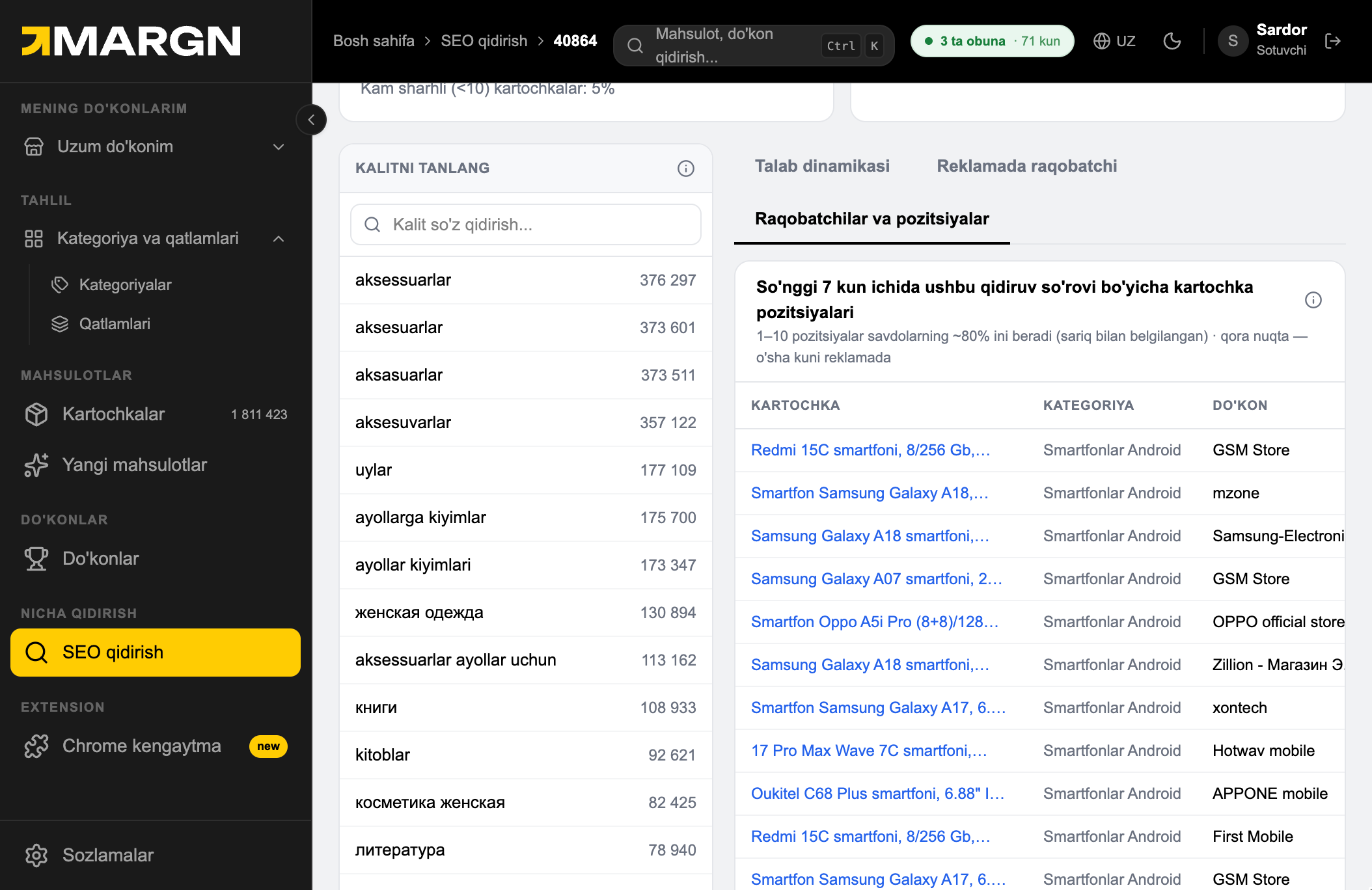
Step 8. Competitors & positions — products shown for this query in the last 7 days, with category and store. 8
9

Scroll the table right: daily positions. Yellow = places 1–10 (~80% of sales), black dot = advertised that day.
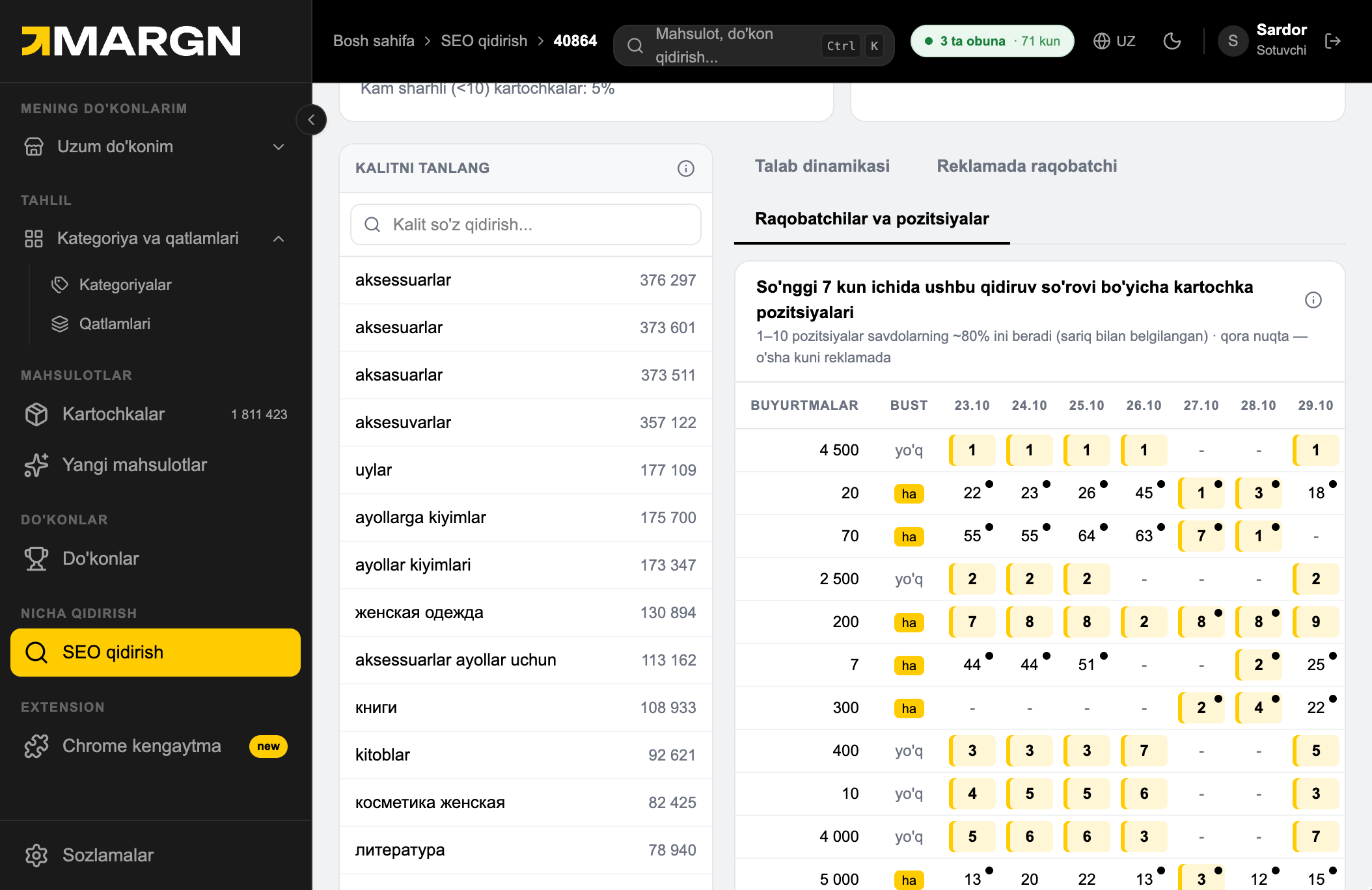
Step 9. Scroll the table right: daily positions. Yellow = places 1–10 (~80% of sales), black dot = advertised that day. 9
10

Boost column — whether a boost (ad promotion) was used: yes or no. To the left: order count.

Step 10. Boost column — whether a boost (ad promotion) was used: yes or no. To the left: order count. 10

14 days free — no card needed

Try everything from this guide on your own store.

Try 14 days free

Still have questions?

Message us on Telegram — we'll give you a 15-minute demo.

Message on Telegram